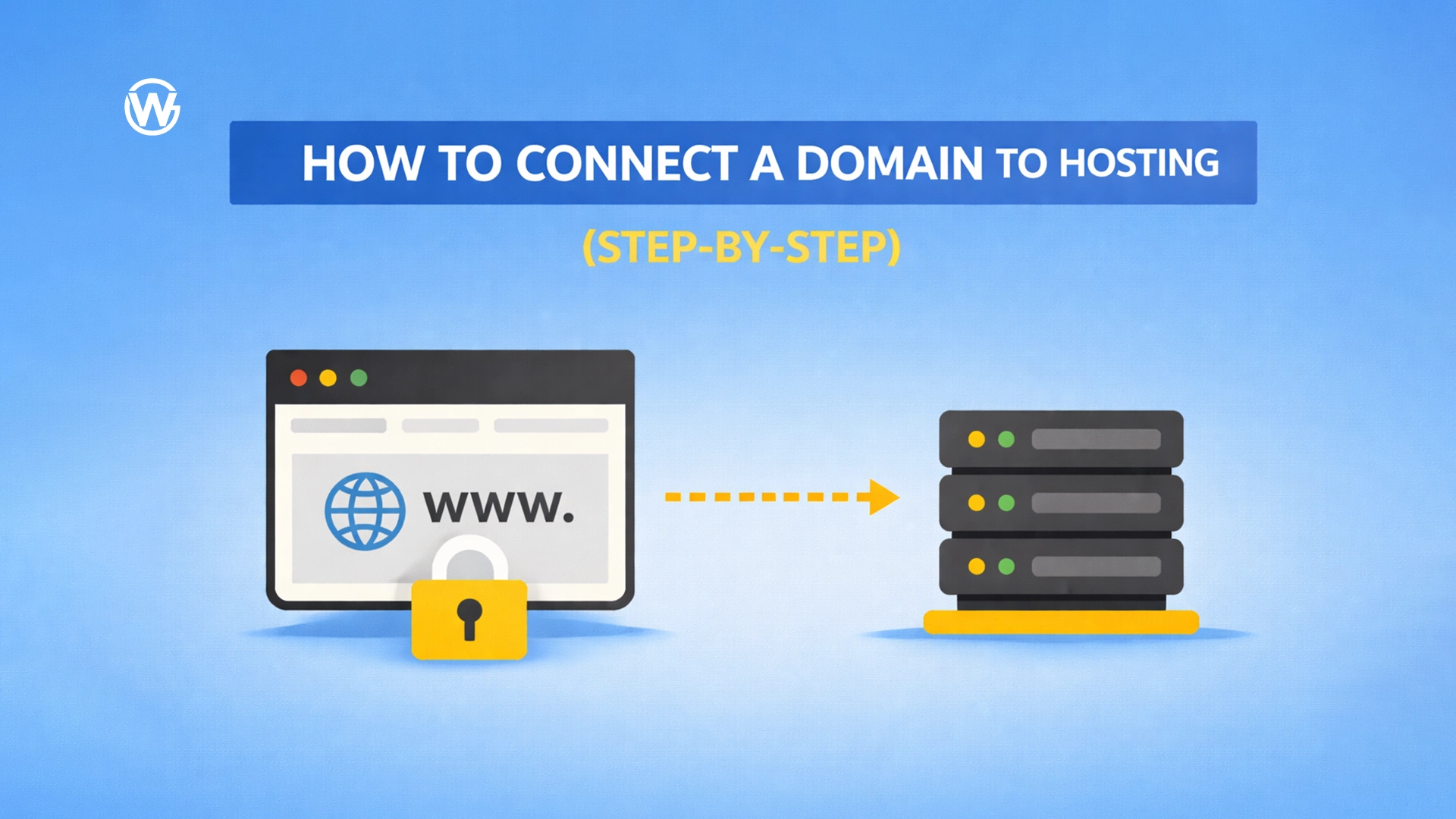
Connecting your domain to hosting is one of the most important steps in getting a website online and also one of the most confusing.
This guide shows you exactly how to point your domain to hosting, safely and correctly, without breaking your website, email, or domain ownership.
What this guide will help you do
By the end of this guide, you’ll be able to:
- Connect your domain to a hosting provider
- Allow a developer to build your website
- Understand what changes you’re making (without technical jargon)
Important reassurance:
You are not giving up ownership of your domain by doing this.
You stay in full control at all times.
What nameservers and DNS actually do (simple explanation)
Here’s the simplest way to understand it:
- Domain = your address (example.com)
- Hosting = the land/building where your website lives
- DNS = the directions that tell the internet where to go
- Nameservers = who controls those directions
When you connect a domain to hosting, you’re simply telling the internet:
“This website lives over here.”
That’s it.
What you need before starting
Before you make any changes, check you have:
- Access to your domain provider (Namecheap, GoDaddy, etc.)
- Your hosting provider details (we recommend Hostinger)
- The correct nameservers or DNS records, provided by:
- your hosting provider, or
- your developer (for example, Web Guidance)
If you don’t have these yet, stop here and get them first.
→ Click here to learn more about Hosting and how to get started
Option A: Point your domain using nameservers (recommended)
This is the simplest and safest method for most people.
When to use this method:
- You’re setting up a new website
- You want hosting to manage DNS automatically
- Your hosting provider has given you nameservers
This is what we recommend for most Web Guidance clients.
→ Click here to learn more about DNS setup and how it effects email delivery
Step-by-step: Update nameservers (Namecheap example)
- Log in to your domain provider
- Go to Domain List
- Click Manage next to your domain
- Find Nameservers
- Choose Advanced DNS
- Replace existing nameservers with the ones provided by Hostinger
- Save changes
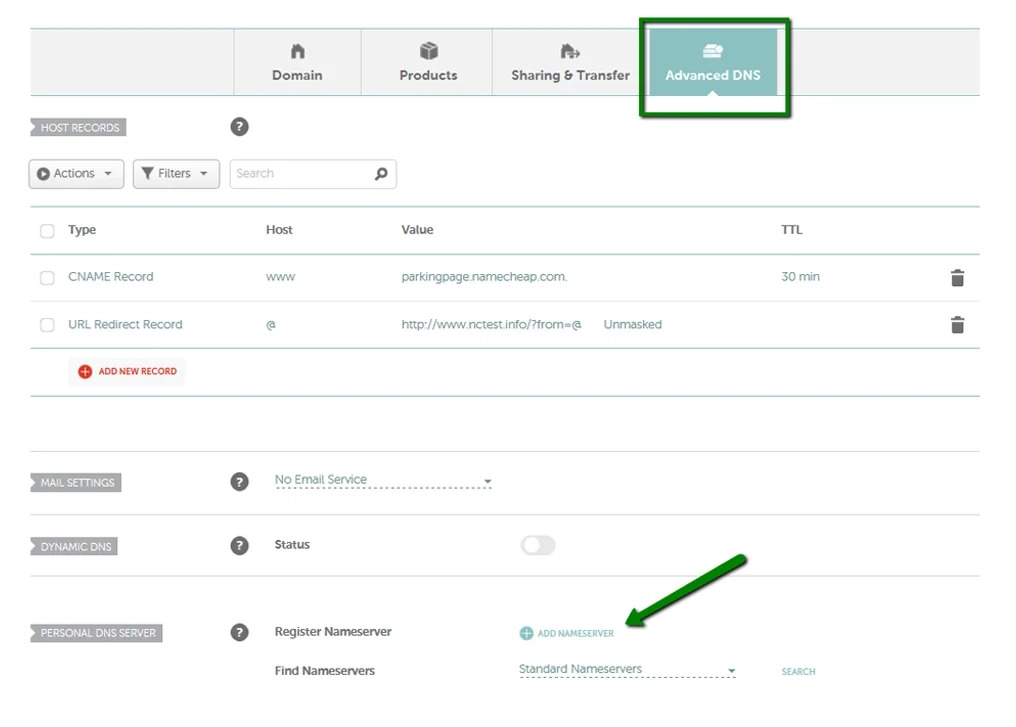
That’s it. You do not need to edit anything else.
→ Click here to learn more about domains and how to get one
What happens next
- Changes usually start working within minutes
- Full propagation can take up to 24 hours
- Your website may appear gradually
This is normal. Don’t panic.
What not to touch
- Do not delete DNS records
- Do not edit email (MX) records
- Do not change multiple settings at once
If something is already working, leave it alone.
Option B: Point your domain using DNS records (advanced)
This method is usually used when:
- Email is already set up elsewhere
- A developer asks you specifically for DNS access
- You need a more customised setup
If you’re unsure, ask before doing this.
How DNS record pointing works (high level)
Instead of changing nameservers, you:
- Keep nameservers as they are
- Add specific DNS records that point to hosting
Common records include:
- A record (points your domain to a server IP)
- CNAME record (connects www to your main domain)
You should always follow your developer’s instructions exactly when using this method.
Common mistakes to avoid (very important)
These mistakes cause most website and email problems:
- Changing nameservers and DNS records at the same time
- Deleting MX records and breaking email
- Editing the wrong domain (www vs non-www)
- Panicking before propagation finishes
If something stops working unexpectedly, stop making changes and ask for help.
How Web Guidance uses this setup
When working with Web Guidance:
- You keep full ownership of your domain
- You point nameservers to hosting
- We build and connect everything correctly
- You receive a fully working website
Nothing is locked in.
You can:
- Move hosting later
- Change developers
- Update DNS anytime
Your domain always stays yours.
When you should contact support first
Get help before making changes if:
- Your domain is business-critical
- Email is already live
- You’re unsure which method to use
- A developer has given unclear instructions
A small mistake here can cause unnecessary downtime.
Recommended hosting provider
We recommend Hostinger for most small businesses because it’s reliable, beginner-friendly, and works well with modern website setups.
We recommend Hostinger
Need help connecting your domain safely?
If you’d rather not risk breaking anything, Web Guidance can:
- Guide you step-by-step
- Or handle the setup securely for you
Whether you’re DIY or working with us, this guide ensures you understand exactly what’s happening.